

Overview
Game Invites allow users to invite others to join their game session or party. This feature is available on the Discord client and the Social SDK.Game Invites are not a standalone feature - they are powered entirely by Rich Presence. When you configure Rich
Presence with party information, a join secret, and/or supported platforms, Discord automatically enables invite
functionality. This guide shows you how to configure Rich Presence to unlock game invites.
Prerequisites
Before you begin, make sure you have:- Completed the Setting Rich Presence guide
- Understanding that without an active Rich Presence with party data, invites will not work
- Set up the Discord Social SDK with our Getting Started guide
Configuring Rich Presence to Enable Game Invites
Game invites, or activity invites, are powered by rich presence. We covered the basics of Setting Rich Presence in a previous guide but let’s go over the key points again.Let’s talk about the naming of some Discord primitives first. Rich Presence, aka “Activity”, can be thought of as the “current activity of a user” and is represented by the
Activity class in the SDK and in our gateway events. This is not to be confused with Discord Activities, which are embedded games that can also set and display rich presence.Setting Up Rich Presence
Below is an example of setting up rich presence in your game to be used with game invites.Activity with party information and a join secret to send game invites. Let’s do that next.
Adding an Activity Party
Adding Join Secret & Supported Platforms
The last step is to add a join secret to your rich presence activity. TheJoin Secret is a generic secret that you can use to join a Discord lobby, a game session, or something else. The game invite system is a way for players to share this secret value with other players - how you use it is up to you.
You will also need to set the supported platforms for joining the game so that the Discord client can display the correct invite button for the user’s platform.
Putting It All Together
Registering a Launch Command
Before we send a game invite, let’s make sure that Discord knows how to launch your game when someone opens an invite. Launch registration is local, as in it only affects the machine that calls it. Therefore, each time the SDK starts up within your game client, register how your game should be launched on that machine, so that if the player opens an invite from Discord, your game can be launched for them if not already running. There are two ways to register, depending on how your game is distributed:- Register a launch command for your game
- Register a Steam Game ID
Registering a Launch Command
Client::RegisterLaunchCommand allows you to register a command that Discord will run on this machine to launch your game. Run this when the SDK starts up so that if the user opens an invite from Discord the game can be launched for them.
Registering a Steam Game
For Steam games,Client::RegisterLaunchSteamApplication allows you to register your Steam game ID on this machine. As with the launch command, run this when the SDK starts up so that if the user opens an invite from Discord the game can be launched for them.
Sending Game Invites
Game invites can be sent in two ways:- Users can send game invites directly through the Discord client.
- You can programmatically send game invites on a user’s behalf through the SDK.
Sending Game Invites in the Discord Client
Users can send game invites directly through the Discord client. This feature is described in detail in the Game Invites help center article.Sending Game Invites in the SDK
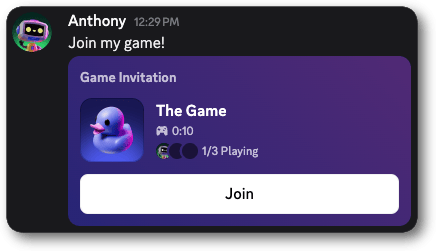
If a player has the required party, join secret, and supported platforms set in their rich presence, your game can send game invites programmatically through the SDK usingClient::SendActivityInvite.
Receiving Game Invites
Game invites can also be received in two ways:- Users can receive game invites directly through the Discord client.
- Your game can receive game invites for a user programmatically through the SDK.
Receiving Game Invites in the Discord Client
Users can receive game invites directly in their DMs. This feature is described in detail in the Game Invites help center article.Receiving Game Invites in the SDK
UseClient::SetActivityInviteCreatedCallback to detect new invites and Client::AcceptActivityInvite to accept them. The callback you specify for Client::AcceptActivityInvite will be invoked with the join secret you set in Rich Presence.
Accepting Game Invites
UseClient::SetActivityJoinCallback to monitor for a user accepting a game invite, either in-game or in Discord. Use the join secret to connect the players in your game.
Using Game Invites with Lobbies
Game invites can be used in conjunction with Lobbies to create a seamless experience for players to join a game session or party. When a player accepts a game invite, you can use the join secret to connect the two players in your game. An example flow might look like this:- When a user starts playing the game, they create a lobby with a random secret string, using
Client::CreateOrJoinLobby - That user publishes their Rich Presence with the join secret set to the lobby secret, along with party size information
- Another user can then see that Rich Presence on Discord and request to join
- Once accepted, the new user receives the join secret, and their client can call CreateOrJoinLobby(joinSecret) to join the lobby
- Finally, the original user can notice that the lobby membership has changed, so they publish a new Rich Presence update containing the updated party size information
These examples use client-side lobby management but can also be adapted for lobbies created on the server side.
Game Invite with Lobby Example
Here’s a code example of how you might implement this flow:Lobby Join Request Example
Users can also request to join each other’s parties. This code example shows how that flow might look:Supporting Mobile Game Invites
When a player receives a game invite on mobile, Discord must know how to launch your game. Game launching is handled through deep linking, which allows Discord to pass the join information to your game.Setting Up Mobile Deep Links
- Configure your deep link URL in the Discord Developer Portal:
- Go to your application’s
Generaltab - Enter your game’s URL scheme. Any
https://URL will work here but for maximum flexibility should be a Universal Link for iOS or an Android App Link. - Discord will append
/_discord/join?secret=SECRETHEREto your URL
- Tell Discord which platforms can accept invites:
How Mobile Deep Links Work
- The user receives and accepts an invite in Discord
- Discord launches your game using your URL scheme:
- Your game receives the URL and extracts the join secret
- Use the secret to connect the player to the session
Setting a Cover Image for the Invite (Optional)
You can set a cover image for an invite via rich presence activity. This image displays as the banner on the invite and helps draw attention to it. Setting a cover image via rich presence allows you to dynamically customize invites per rich presence activity; for example, showing different images based on game mode, map, etc. rather than using the same static image for all invites. If not set, the banner falls back to the “Rich Presence Invite Image” configured in the Developer Portal under the “Rich Presence” tab. Setting an invite cover image is entirely optional.Next Steps
Creating a Unified Friends List
Combine Discord and game friends into a single list for easy management.
Managing Lobbies
Bring players together in a shared lobby with invites, text chat, and voice comms.
Sending Direct Messages
Enable private messaging between players.
#social-sdk-dev-help channel for support from the community.
If you encounter a bug while working with the Social SDK, please report it here: https://dis.gd/social-sdk-bug-report
Change Log
| Date | Changes |
|---|---|
| June 10, 2026 | Clarify that launch command registration is local to each machine |
| June 8, 2026 | Recommend communication scopes; clarify empty invite message behavior |
| March 17, 2025 | initial release |